


香橙派扩容以及剩余分区分配
未分区之前:
root@orangepiwin:~# lsblk
NAME        MAJ:MIN RM  SIZE RO TYPE MOUNTPOINT
mmcblk0     179:0    0 14.9G  0 disk
|-mmcblk0p1 179:1    0   50M  0 part /boot
`-mmcblk0p2 179:2    0  1.7G  0 part /

root@orangepiwin:~# df -lh
Filesystem      Size  Used Avail Use% Mounted on
/dev/mmcblk0p2  1.7G  1.3G  235M  86% /
devtmpfs        962M     0  962M   0% /dev
tmpfs           994M     0  994M   0% /dev/shm
tmpfs           994M   17M  977M   2% /run
tmpfs           5.0M  4.0K  5.0M   1% /run/lock
tmpfs           994M     0  994M   0% /sys/fs/cgroup
/dev/mmcblk0p1   50M   14M   37M  27% /boot
tmpfs           199M     0  199M   0% /run/user/0
官方推荐使用使用resize_rootfs.sh 扩容,系统自动分区扩容
root@orangepiwin:~# resize_rootfs.sh
143360

Welcome to fdisk (util-linux 2.27.1).
Changes will remain in memory only, until you decide to write them.
Be careful before using the write command.


Command (m for help): Disk /dev/mmcblk0: 14.9 GiB, 15931539456 bytes, 31116288 sectors
Units: sectors of 1 * 512 = 512 bytes
Sector size (logical/physical): 512 bytes / 512 bytes
I/O size (minimum/optimal): 512 bytes / 512 bytes
Disklabel type: dos
Disk identifier: 0x589d1da2

Device         Boot  Start     End Sectors  Size Id Type
/dev/mmcblk0p1       40960  143359  102400   50M  c W95 FAT32 (LBA)
/dev/mmcblk0p2      143360 3680255 3536896  1.7G 83 Linux

Command (m for help): Partition number (1,2, default 2):
Partition 2 has been deleted.

Command (m for help): Partition type
   p   primary (1 primary, 0 extended, 3 free)
   e   extended (container for logical partitions)
Select (default p): Partition number (2-4, default 2): First sector (2048-31116287, default 2048): Last sector, +sectors or +size{K,M,G,T,P} (143360-31116287, default 31116287):
Created a new partition 2 of type 'Linux' and of size 14.8 GiB.

Command (m for help): The partition table has been altered.
Calling ioctl() to re-read partition table.
Re-reading the partition table failed.: Device or resource busy

The kernel still uses the old table. The new table will be used at the next reboot or after you run partprobe(8) or kpartx(8).

resize2fs 1.42.13 (17-May-2015)
Filesystem at /dev/mmcblk0p2 is mounted on /; on-line resizing required
old_desc_blocks = 1, new_desc_blocks = 2
The filesystem on /dev/mmcblk0p2 is now 3871616 (4k) blocks long.

Done!
扩容完成后查看扩容状态
root@orangepiwin:~# lsblk
NAME        MAJ:MIN RM  SIZE RO TYPE MOUNTPOINT
mmcblk0     179:0    0 14.9G  0 disk
|-mmcblk0p1 179:1    0   50M  0 part /boot
`-mmcblk0p2 179:2    0 14.8G  0 part /
root@orangepiwin:~# df -lh
Filesystem      Size  Used Avail Use% Mounted on
/dev/mmcblk0p2   15G  1.4G   13G  10% /
devtmpfs        962M     0  962M   0% /dev
tmpfs           994M     0  994M   0% /dev/shm
tmpfs           994M   17M  977M   2% /run
tmpfs           5.0M  4.0K  5.0M   1% /run/lock
tmpfs           994M     0  994M   0% /sys/fs/cgroup
/dev/mmcblk0p1   50M   14M   37M  27% /boot
tmpfs           199M     0  199M   0% /run/user/0
原有分区扩容
Linux扩容的三种方式:
1.给虚拟机新增一块磁盘,为这块磁盘新建一个分区
2.给虚拟机新增一块磁盘,并把磁盘空间扩容到原有分区
3.直接给 / 分区(或者某一分区)扩容,直接在原有磁盘上增大空间
给/分区扩容(标准分区扩容-非LVM)
查看磁盘信息
列出所有磁盘的大小和磁盘分区的详细信息
root@debian122:~# lsblk
NAME   MAJ:MIN RM  SIZE RO TYPE MOUNTPOINTS
sda      8:0    0   60G  0 disk
├─sda1   8:1    0   49G  0 part /
├─sda2   8:2    0    1K  0 part
└─sda5   8:5    0  975M  0 part [SWAP]

root@debian122:~# fdisk -l
Disk /dev/sda: 60 GiB, 64424509440 bytes, 125829120 sectors
Disk model: QEMU HARDDISK
Units: sectors of 1 * 512 = 512 bytes
Sector size (logical/physical): 512 bytes / 512 bytes
Disklabel type: dos
Disk identifier: 0x4c8b29b2
Device    Boot     Start       End   Sectors  Size Id Type
/dev/sda1  *         2048 102856703 102854656   49G 83 Linux
/dev/sda2       102858750 104855551   1996802  975M  5 Extended
/dev/sda5       102858752 104855551   1996800  975M 82 Linux swap / Solaris
目前sda60G,将多出来的10G空间分配给sda1。
修改交换分区
删除交换分区,因为交换分区位于主分区之后,所以扩容时先删除交换分区
运行fdisk 指定磁盘 /dev/sda
root@debian122:~# fdisk /dev/sda

Welcome to fdisk (util-linux 2.38.1).
Changes will remain in memory only, until you decide to write them.
Be careful before using the write command.

This disk is currently in use - repartitioning is probably a bad idea.
It's recommended to umount all file systems, and swapoff all swap
partitions on this disk.注意:fdisk 在保存更改之前,可以始终退出而不产生任何修改
输入P查看分区列表
Command (m for help): p

Disk /dev/sda: 60 GiB, 64424509440 bytes, 125829120 sectors
Disk model: QEMU HARDDISK
Units: sectors of 1 * 512 = 512 bytes
Sector size (logical/physical): 512 bytes / 512 bytes
I/O size (minimum/optimal): 512 bytes / 512 bytes
Disklabel type: dos
Disk identifier: 0x4c8b29b2

Device     Boot     Start       End   Sectors  Size Id Type
/dev/sda1  *         2048 102858749 102856702   49G 83 Linux
/dev/sda2       102858750 104855551   1996802  975M  5 Extended
/dev/sda5       102858752 104855551   1996800  975M 82 Linux swap / Solaris
这里我们要注意磁盘上的扇区总数(125829120)和要交换的扇区数(1996800)。请注意分区/dev/sda2(他是自动创建的)里面没有文件可以删除。
删除交换分区5和逻辑分区2(命令d)
Command (m for help): d
Partition number (1,2,5, default 5): 5

Partition 5 has been deleted.

Command (m for help): d
Partition number (1,2, default 2): 2

Partition 2 has been deleted.
然后执行p查看结果,此时只剩下一个分区
Command (m for help): p
Disk /dev/sda: 60 GiB, 64424509440 bytes, 125829120 sectors
Disk model: QEMU HARDDISK
Units: sectors of 1 * 512 = 512 bytes
Sector size (logical/physical): 512 bytes / 512 bytes
I/O size (minimum/optimal): 512 bytes / 512 bytes
Disklabel type: dos
Disk identifier: 0x4c8b29b2

Device     Boot Start       End   Sectors Size Id Type
/dev/sda1  *     2048 102858749 102856702  49G 83 Linux
新建交换分区
现在,我们在磁盘末尾新建交换分区。使用n创建新分区,如果你的内存足够大可以不启动交换分区,可以跳过此步骤
Command (m for help): n
Partition type
   p   primary (1 primary, 0 extended, 3 free)
   e   extended (container for logical partitions)
Select (default p): e
Partition number (2-4, default 2): 2
为/dev/sda2/选择分区类型,选择逻辑e,指定分区2的序列号。
接下来需要指示第一个扇区,如果我们想要保持交换分区大小不变,那么从磁盘的最后一个扇区(125829119)减去/dev/sda2的大小(1996800),为默认值,得到123832320。指定磁盘的最后一个扇区默认即可。
First sector (102858750-125829119, default 102858752): 123832320
Last sector, +/-sectors or +/-size{K,M,G,T,P} (123832320-125829119, default 125829119): 125829119
Created a new partition 2 of type 'Extended' and of size 975 MiB.
现在我们通过t来更改类型,指定分区2和代码82进行转换分区类型:
Command (m for help): t
Partition number (1,2, default 2): 2
Hex code or alias (type L to list all): L

00 Empty            27 Hidden NTFS Win  82 Linux swap / So  c1 DRDOS/sec (FAT-
01 FAT12            39 Plan 9           83 Linux            c4 DRDOS/sec (FAT-
02 XENIX root       3c PartitionMagic   84 OS/2 hidden or   c6 DRDOS/sec (FAT-
03 XENIX usr        40 Venix 80286      85 Linux extended   c7 Syrinx
04 FAT16 <32M       41 PPC PReP Boot    86 NTFS volume set  da Non-FS data
05 Extended         42 SFS              87 NTFS volume set  db CP/M / CTOS / .
06 FAT16            4d QNX4.x           88 Linux plaintext  de Dell Utility
07 HPFS/NTFS/exFAT  4e QNX4.x 2nd part  8e Linux LVM        df BootIt
08 AIX              4f QNX4.x 3rd part  93 Amoeba           e1 DOS access
09 AIX bootable     50 OnTrack DM       94 Amoeba BBT       e3 DOS R/O
0a OS/2 Boot Manag  51 OnTrack DM6 Aux  9f BSD/OS           e4 SpeedStor
0b W95 FAT32        52 CP/M             a0 IBM Thinkpad hi  ea Linux extended
0c W95 FAT32 (LBA)  53 OnTrack DM6 Aux  a5 FreeBSD          eb BeOS fs
0e W95 FAT16 (LBA)  54 OnTrackDM6       a6 OpenBSD          ee GPT
0f W95 Ext'd (LBA)  55 EZ-Drive         a7 NeXTSTEP         ef EFI (FAT-12/16/
10 OPUS             56 Golden Bow       a8 Darwin UFS       f0 Linux/PA-RISC b
11 Hidden FAT12     5c Priam Edisk      a9 NetBSD           f1 SpeedStor
12 Compaq diagnost  61 SpeedStor        ab Darwin boot      f4 SpeedStor
14 Hidden FAT16 <3  63 GNU HURD or Sys  af HFS / HFS+       f2 DOS secondary
16 Hidden FAT16     64 Novell Netware   b7 BSDI fs          f8 EBBR protective
17 Hidden HPFS/NTF  65 Novell Netware   b8 BSDI swap        fb VMware VMFS
18 AST SmartSleep   70 DiskSecure Mult  bb Boot Wizard hid  fc VMware VMKCORE
1b Hidden W95 FAT3  75 PC/IX            bc Acronis FAT32 L  fd Linux raid auto
1c Hidden W95 FAT3  80 Old Minix        be Solaris boot     fe LANstep
1e Hidden W95 FAT1  81 Minix / old Lin  bf Solaris          ff BBT
24 NEC DOS

Aliases:
   linux          - 83
   swap           - 82
   extended       - 05
   uefi           - EF
   raid           - FD
   lvm            - 8E
   linuxex        - 85
Hex code or alias (type L to list all): 82

Changed type of partition 'Extended' to 'Linux swap / Solaris'.
转换分区类型后看到结果,并保存更改
Command (m for help): p
Disk /dev/sda: 60 GiB, 64424509440 bytes, 125829120 sectors
Disk model: QEMU HARDDISK
Units: sectors of 1 * 512 = 512 bytes
Sector size (logical/physical): 512 bytes / 512 bytes
I/O size (minimum/optimal): 512 bytes / 512 bytes
Disklabel type: dos
Disk identifier: 0x4c8b29b2

Device     Boot     Start       End   Sectors  Size Id Type
/dev/sda1  *         2048 102858749 102856702   49G 83 Linux
/dev/sda2       123832320 125829119   1996800  975M 82 Linux swap / Solaris

Command (m for help): w
The partition table has been altered.
Failed to remove partition 5 from system: Device or resource busy

The kernel still uses the old partitions. The new table will be used at the next reboot.
Syncing disks.
在这之后,我们可以创建一个交换分区(指定您的新的交换分区),通过如下命令获取盘符的UUID。
root@debian122:~# mkswap /dev/sda2
Setting up swapspace version 1, size = 975 MiB (1022357504 bytes)
no label, UUID=f6b7151a-9f05-4acd-8661-33d5b0cab62f
复制上一步获取的UUID,更新/etc/fstab 文件为交换分区设置新的UUID
root@debian122:~# vi /etc/fstab
root@debian122:~# cat /etc/fstab
# /etc/fstab: static file system information.
#
# Use 'blkid' to print the universally unique identifier for a
# device; this may be used with UUID= as a more robust way to name devices
# that works even if disks are added and removed. See fstab(5).
#
# systemd generates mount units based on this file, see systemd.mount(5).
# Please run 'systemctl daemon-reload' after making changes here.
#
# <file system> <mount point>   <type>  <options>       <dump>  <pass>
# / was on /dev/sda1 during installation
UUID=a16edb40-fe36-4d2c-b18b-64e1d6437bc1 /               ext4    errors=remount-ro 0       1
# swap was on /dev/sda5 during installation
UUID=f6b7151a-9f05-4acd-8661-33d5b0cab62f none            swap    sw              0       0
/dev/sr0        /media/cdrom0   udf,iso9660 user,noauto     0       0
启动交换分区
root@debian122:~# swapon /dev/sda2扩展分区
扩展分区前,如果发现分区挂载为非/分区,需要取消挂载,扩展完成后再重新挂载。
umount /dev/sda1 /mysql
mount /dev/sda1 /mysql
进入 fdisk /dev/sda 输入p查看磁盘分配
root@debian122:~# fdisk /dev/sda

Welcome to fdisk (util-linux 2.38.1).
Changes will remain in memory only, until you decide to write them.
Be careful before using the write command.

This disk is currently in use - repartitioning is probably a bad idea.
It's recommended to umount all file systems, and swapoff all swap
partitions on this disk.


Command (m for help): p

Disk /dev/sda: 60 GiB, 64424509440 bytes, 125829120 sectors
Disk model: QEMU HARDDISK
Units: sectors of 1 * 512 = 512 bytes
Sector size (logical/physical): 512 bytes / 512 bytes
I/O size (minimum/optimal): 512 bytes / 512 bytes
Disklabel type: dos
Disk identifier: 0x4c8b29b2

Device     Boot     Start       End   Sectors  Size Id Type
/dev/sda1  *         2048 102858749 102856702   49G 83 Linux
/dev/sda2       123832320 125829119   1996800  975M 82 Linux swap / Solaris
您可以有其他分区。主要的是在我们想要扩展的分区之后有空闲扇区。为了做到这一点,在上一节中,我们将交换分区移动到磁盘的末尾。我们得到sda1在扇区102856702处结束,下一个分区sda2在123832320处开始,它们之间有空闲扇区。如果磁盘上有一个分区或者是最后一个分区,那么您需要查看分区(102856702)和磁盘(123832320)的最后一个扇区。
要扩展分区,必须首先删除有关它的信息。为此,输入d并指定分区(1 /dev/sda1)
Command (m for help): d
Partition number (1,2, default 2): 1

Partition 1 has been deleted.
创建新分区
Command (m for help): n
Partition type
   p   primary (1 primary, 0 extended, 3 free)
   e   extended (container for logical partitions)
Select (default p): p
Partition number (1,3,4, default 1): 1
First sector (2048-123832319, default 2048):
Last sector, +/-sectors or +/-size{K,M,G,T,P} (2048-123832319, default 123832319):

Created a new partition 1 of type 'Linux' and of size 59 GiB.
Partition #1 contains a ext4 signature.
系统会询问是否删除当前文件选择 N 不删除,然后输入 w 保存更改。
# 此处不要选y
Do you want to remove the signature? [Y]es/[N]o: n

Command (m for help): w

The partition table has been altered.
Failed to update system information about partition 1: Device or resource busy

The kernel still uses the old partitions. The new table will be used at the next reboot.
Syncing disks.
重启系统,此处也可以不操作,有条件建议重启下
调整 ext4 文件系统的大小 sudo resize2fs /dev/sda1
root@debian122:~# resize2fs /dev/sda1
resize2fs 1.47.0 (5-Feb-2023)
Filesystem at /dev/sda1 is mounted on /; on-line resizing required
old_desc_blocks = 7, new_desc_blocks = 7
The filesystem on /dev/sda1 is now 12857087 (4k) blocks long.
# 更改后
root@debian122:~# resize2fs /dev/sda1
resize2fs 1.47.0 (5-Feb-2023)
Filesystem at /dev/sda1 is mounted on /; on-line resizing required
old_desc_blocks = 7, new_desc_blocks = 8
The filesystem on /dev/sda1 is now 15478784 (4k) blocks long.
验证磁盘扩展是否成功
root@debian122:~# df -lh
Filesystem      Size  Used Avail Use% Mounted on
udev            3.9G     0  3.9G   0% /dev
tmpfs           795M  1.1M  794M   1% /run
/dev/sda1        58G   27G   29G  48% /
tmpfs           3.9G  1.1M  3.9G   1% /dev/shm
tmpfs           5.0M     0  5.0M   0% /run/lock
tmpfs           795M   48K  795M   1% /run/user/107
overlay          58G   27G   29G  48% /var/lib/docker/overlay2/52fd33985eb2f605f154b84fa8c7b53885b6b98d5102314a171c5e5967b94def/merged
overlay          58G   27G   29G  48% /var/lib/docker/overlay2/a4d7ddc1e0fe499696cbfa52850a94e750ad6ba5cca79dbcd328ce51ff3e00aa/merged
tmpfs           795M   40K  795M   1% /run/user/0
root@debian122:~# lsblk
NAME   MAJ:MIN RM  SIZE RO TYPE MOUNTPOINTS
sda      8:0    0   60G  0 disk
├─sda1   8:1    0   59G  0 part /
└─sda2   8:2    0  975M  0 part [SWAP]
给/分区扩容(lvm扩容-新建分区扩容)
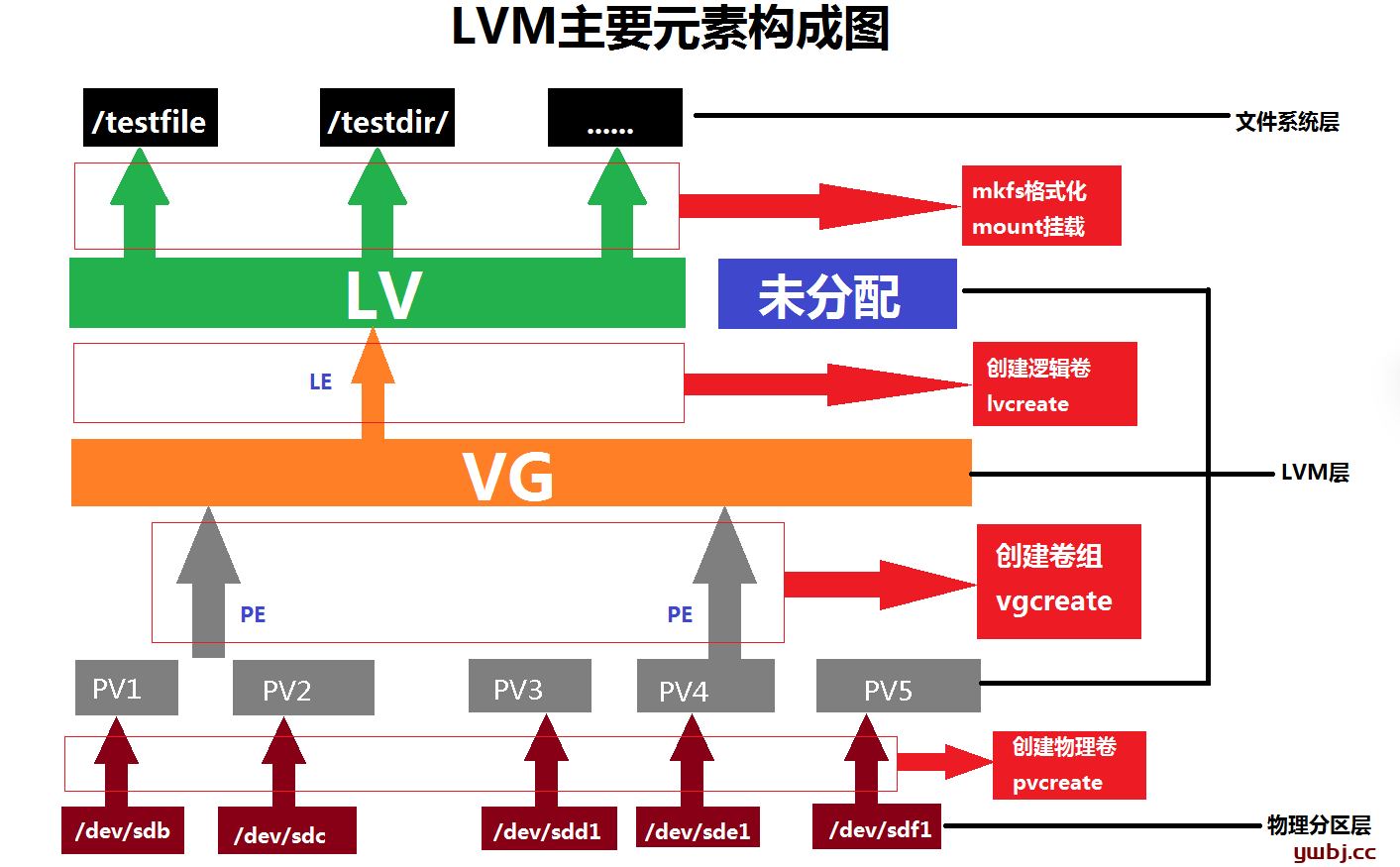
1、概念介绍(物理卷,卷组,逻辑卷)
扩展之前。需要了解的三个概率:物理卷,卷组,逻辑卷。引入这个概念,可以解除物理隔离的限制。
物理卷:Physical volume 简称 PV
物理卷在逻辑卷管理器中属于最底层的,任何的逻辑卷和卷组都必需依靠物理卷来建立,物理卷可以是一个完整的硬盘,也可以是硬盘中的某一个分区。
卷组 – Volume group 简称 VG
卷组是建立在物理卷之上,一个卷组中可以包含一个或者多个物理卷。
逻辑卷 – Logical volume 简称 LV
逻辑卷类似于非 LVM 系统中的硬盘分区,在逻辑卷之上可以建立文件系统 (比如 /home 或者 /usr 等)。
加上还有其他元素(有兴趣自己深究),一起构成LVM(Logical Volume Manager)逻辑卷管理
总结:多个磁盘/分区/raid–>多个物理卷PV–>合成卷组VG–>从VG划分出逻辑卷LV–>格式化LV,挂载使用
1.1、查看分区
root@debiantestvolume:~# lsblk
NAME                            MAJ:MIN RM  SIZE RO TYPE MOUNTPOINTS
sda                               8:0    0   40G  0 disk
├─sda1                            8:1    0  487M  0 part /boot
├─sda2                            8:2    0    1K  0 part
└─sda5                            8:5    0 31.5G  0 part
  ├─debiantestvolume--vg-root   254:0    0 30.5G  0 lvm  /
  └─debiantestvolume--vg-swap_1 254:1    0  976M  0 lvm  [SWAP]

root@debiantestvolume:~# fdisk -l
Disk /dev/sda: 40 GiB, 42949672960 bytes, 83886080 sectors
Disk model: QEMU HARDDISK
Units: sectors of 1 * 512 = 512 bytes
Sector size (logical/physical): 512 bytes / 512 bytes
I/O size (minimum/optimal): 512 bytes / 512 bytes
Disklabel type: dos
Disk identifier: 0xd23d2242

Device     Boot   Start      End  Sectors  Size Id Type
/dev/sda1  *       2048   999423   997376  487M 83 Linux
/dev/sda2       1001470 67106815 66105346 31.5G  5 Extended
/dev/sda5       1001472 67106815 66105344 31.5G 8e Linux LVM


Disk /dev/mapper/debiantestvolume--vg-root: 30.52 GiB, 32774291456 bytes, 64012288 sectors
Units: sectors of 1 * 512 = 512 bytes
Sector size (logical/physical): 512 bytes / 512 bytes
I/O size (minimum/optimal): 512 bytes / 512 bytes


Disk /dev/mapper/debiantestvolume--vg-swap_1: 976 MiB, 1023410176 bytes, 1998848 sectors
Units: sectors of 1 * 512 = 512 bytes
Sector size (logical/physical): 512 bytes / 512 bytes
I/O size (minimum/optimal): 512 bytes / 512 bytes
总硬盘大小40G,sda5大小31.5G,可以有大约8G空间分配给debiantestvolume--vg-root的根分区。
从根分区的lvm的名称可以看出,已经存在卷组vg为debiantestvolume--vg,和逻辑卷lv为root,所以想要扩容,只需要增加卷组的空间,然后分配给逻辑卷即可
1.2、查看卷组和逻辑卷的信息
root@debiantestvolume:~# pvdisplay
  --- Physical volume ---
  PV Name               /dev/sda5
  VG Name               debiantestvolume-vg
  PV Size               31.52 GiB / not usable 2.00 MiB
  Allocatable           yes
  PE Size               4.00 MiB
  Total PE              8069
  Free PE               11
  Allocated PE          8058
  PV UUID               u7qoce-v06O-AKyR-zD1j-UbnP-VOPW-orql2e

root@debiantestvolume:~# vgdisplay
  --- Volume group ---
  VG Name               debiantestvolume-vg
  System ID
  Format                lvm2
  Metadata Areas        1
  Metadata Sequence No  3
  VG Access             read/write
  VG Status             resizable
  MAX LV                0
  Cur LV                2
  Open LV               2
  Max PV                0
  Cur PV                1
  Act PV                1
  VG Size               <31.52 GiB
  PE Size               4.00 MiB
  Total PE              8069
  Alloc PE / Size       8058 / <31.48 GiB
  Free  PE / Size       11 / 44.00 MiB
  VG UUID               7UxWme-lwT9-cwbo-xPMu-1ORD-HUsd-OA5I3e

root@debiantestvolume:~# lvdisplay
  --- Logical volume ---
  LV Path                /dev/debiantestvolume-vg/root
  LV Name                root
  VG Name                debiantestvolume-vg
  LV UUID                eAILZV-BOjS-GvjS-n31h-gOxp-llMA-fI6cIr
  LV Write Access        read/write
  LV Creation host, time debiantestvolume, 2024-11-29 00:44:33 +0800
  LV Status              available
  # open                 1
  LV Size                30.52 GiB
  Current LE             7814
  Segments               1
  Allocation             inherit
  Read ahead sectors     auto
  - currently set to     256
  Block device           254:0

  --- Logical volume ---
  LV Path                /dev/debiantestvolume-vg/swap_1
  LV Name                swap_1
  VG Name                debiantestvolume-vg
  LV UUID                YSvQD3-QoWt-EhEy-r7d6-gi2Z-DdA6-JwqGtp
  LV Write Access        read/write
  LV Creation host, time debiantestvolume, 2024-11-29 00:44:33 +0800
  LV Status              available
  # open                 2
  LV Size                976.00 MiB
  Current LE             244
  Segments               1
  Allocation             inherit
  Read ahead sectors     auto
  - currently set to     256
  Block device           254:1
2、创建分配分区
为了给增加卷组(VG)的空闲可用空间,先创建一个分区,将剩下的分配给分区
root@debiantestvolume:~# fdisk /dev/sda

Welcome to fdisk (util-linux 2.38.1).
Changes will remain in memory only, until you decide to write them.
Be careful before using the write command.

This disk is currently in use - repartitioning is probably a bad idea.
It's recommended to umount all file systems, and swapoff all swap
partitions on this disk.


Command (m for help): n
Partition type
   p   primary (1 primary, 1 extended, 2 free)
   l   logical (numbered from 5)
Select (default p):

Using default response p.
Partition number (3,4, default 3):
First sector (67106816-83886079, default 67106816):
Last sector, +/-sectors or +/-size{K,M,G,T,P} (67106816-83886079, default 83886079):

Created a new partition 3 of type 'Linux' and of size 8 GiB.

Command (m for help): w
The partition table has been altered.
Syncing disks.

# 创建主分区sda3
root@debiantestvolume:~# lsblk
NAME                            MAJ:MIN RM  SIZE RO TYPE MOUNTPOINTS
sda                               8:0    0   40G  0 disk
├─sda1                            8:1    0  487M  0 part /boot
├─sda2                            8:2    0    1K  0 part
├─sda3                            8:3    0    8G  0 part
└─sda5                            8:5    0 31.5G  0 part
  ├─debiantestvolume--vg-root   254:0    0 30.5G  0 lvm  /
  └─debiantestvolume--vg-swap_1 254:1    0  976M  0 lvm  [SWAP]
3、创建物理卷PV
更新分区表信息
partprobe (debian无需执行此命令)
创建物理卷PV
root@debiantestvolume:~# pvcreate /dev/sda3
  Physical volume "/dev/sda3" successfully created.
注意:老的Linux在创建PV时,需要将分区类型改为Linux
LVM(8e)。但新的系统已经非常智能,即使默认的Linux分区(83),也可以创建PV。具体过程是fdisk 过程中,选择参数
l:查看所有分区类型代码,及t:修改分区类型代码,选择代码8e类型即可。
查看物理卷及卷组信息
root@debiantestvolume:~# pvdisplay
  --- Physical volume ---
  PV Name               /dev/sda5
  VG Name               debiantestvolume-vg
  PV Size               31.52 GiB / not usable 2.00 MiB
  Allocatable           yes
  PE Size               4.00 MiB
  Total PE              8069
  Free PE               11
  Allocated PE          8058
  PV UUID               u7qoce-v06O-AKyR-zD1j-UbnP-VOPW-orql2e

  "/dev/sda3" is a new physical volume of "8.00 GiB"
  --- NEW Physical volume ---
  PV Name               /dev/sda3
  VG Name
  PV Size               8.00 GiB
  Allocatable           NO
  PE Size               0
  Total PE              0
  Free PE               0
  Allocated PE          0
  PV UUID               Ehk8LZ-I9ML-oD1o-SLT8-v2Rl-3mCO-mNQ3Bf
4、扩展卷组
扩展前
root@debiantestvolume:~# vgdisplay
  --- Volume group ---
  VG Name               debiantestvolume-vg
  System ID
  Format                lvm2
  Metadata Areas        1
  Metadata Sequence No  3
  VG Access             read/write
  VG Status             resizable
  MAX LV                0
  Cur LV                2
  Open LV               2
  Max PV                0
  Cur PV                1
  Act PV                1
  VG Size               <31.52 GiB
  PE Size               4.00 MiB
  Total PE              8069
  Alloc PE / Size       8058 / <31.48 GiB
  Free  PE / Size       11 / 44.00 MiB
  VG UUID               7UxWme-lwT9-cwbo-xPMu-1ORD-HUsd-OA5I3e
执行扩展
root@debiantestvolume:~# vgextend debiantestvolume-vg /dev/sda3
  Volume group "debiantestvolume-vg" successfully extended
扩展后,添加了8G的空间
root@debiantestvolume:~# vgdisplay
  --- Volume group ---
  VG Name               debiantestvolume-vg
  System ID
  Format                lvm2
  Metadata Areas        2
  Metadata Sequence No  4
  VG Access             read/write
  VG Status             resizable
  MAX LV                0
  Cur LV                2
  Open LV               2
  Max PV                0
  Cur PV                2
  Act PV                2
  VG Size               <39.52 GiB
  PE Size               4.00 MiB
  Total PE              10117
  Alloc PE / Size       8058 / <31.48 GiB
  Free  PE / Size       2059 / 8.04 GiB
  VG UUID               7UxWme-lwT9-cwbo-xPMu-1ORD-HUsd-OA5I3e
5、分配卷组空间给逻辑卷LV
分配前
root@debiantestvolume:~# lvdisplay
  --- Logical volume ---
  LV Path                /dev/debiantestvolume-vg/root
  LV Name                root
  VG Name                debiantestvolume-vg
  LV UUID                eAILZV-BOjS-GvjS-n31h-gOxp-llMA-fI6cIr
  LV Write Access        read/write
  LV Creation host, time debiantestvolume, 2024-11-29 00:44:33 +0800
  LV Status              available
  # open                 1
  LV Size                30.52 GiB
  Current LE             7814
  Segments               1
  Allocation             inherit
  Read ahead sectors     auto
  - currently set to     256
  Block device           254:0
执行扩展命令
#分配10G ,-L    指定逻辑卷的大小,单位为“kKmMgGtT”字节
lvextend -L +10G /dev/debiantestvolume-vg/root
#或者100%空闲分配, -l    指定逻辑卷的大小(LE数)
lvextend -l +100%FREE /dev/debiantestvolume-vg/root
#或者逻辑卷扩展至38G
lvextend -L 38G /dev/debiantestvolume-vg/root
扩展后
root@debiantestvolume:~# lvdisplay
  --- Logical volume ---
  LV Path                /dev/debiantestvolume-vg/root
  LV Name                root
  VG Name                debiantestvolume-vg
  LV UUID                eAILZV-BOjS-GvjS-n31h-gOxp-llMA-fI6cIr
  LV Write Access        read/write
  LV Creation host, time debiantestvolume, 2024-11-29 00:44:33 +0800
  LV Status              available
  # open                 1
  LV Size                <38.57 GiB
  Current LE             9873
  Segments               3
  Allocation             inherit
  Read ahead sectors     auto
  - currently set to     256
  Block device           254:0
6、调整文件系统大小
执行之后并不会立马生效需要执行,需要重新计算磁盘大小。这时候只能查看lsblk磁盘已增大,但是df -h里面文件系统没有变化,所以需要操作这一步生效。
resize2fs命令是用来增大或者收缩未加载的“ext2/ext3/ext4”文件系统的大小。
root@debiantestvolume:~# resize2fs /dev/debiantestvolume-vg/root
resize2fs 1.47.0 (5-Feb-2023)
Filesystem at /dev/debiantestvolume-vg/root is mounted on /; on-line resizing required
old_desc_blocks = 4, new_desc_blocks = 5
The filesystem on /dev/debiantestvolume-vg/root is now 10109952 (4k) blocks long.
7、查看磁盘大小
root@debiantestvolume:~# df -h
Filesystem                             Size  Used Avail Use% Mounted on
udev                                   960M     0  960M   0% /dev
tmpfs                                  197M  492K  197M   1% /run
/dev/mapper/debiantestvolume--vg-root   38G  1.7G   35G   5% /
tmpfs                                  984M     0  984M   0% /dev/shm
tmpfs                                  5.0M     0  5.0M   0% /run/lock
/dev/sda1                              455M  108M  323M  25% /boot
tmpfs                                  197M     0  197M   0% /run/user/0
给/分区扩容(lvm扩容-原分区扩容)
1.查看分区
# sda大小60G,sda3+sda5大小为40G
root@debiantestvolume:~# lsblk
NAME                            MAJ:MIN RM  SIZE RO TYPE MOUNTPOINTS
sda                               8:0    0   60G  0 disk
├─sda1                            8:1    0  487M  0 part /boot
├─sda2                            8:2    0    1K  0 part
├─sda3                            8:3    0    8G  0 part
│ └─debiantestvolume--vg-root   254:0    0 48.6G  0 lvm  /
└─sda5                            8:5    0 31.5G  0 part
  ├─debiantestvolume--vg-root   254:0    0 48.6G  0 lvm  /
  └─debiantestvolume--vg-swap_1 254:1    0  976M  0 lvm  [SWAP]
sdb                               8:16   0   15G  0 disk
└─debiantestvolume--vg-root     254:0    0 48.6G  0 lvm  /
2、进入磁盘编辑修改原分区
新增磁盘扩容到原分区
1、添加新硬盘sdb
root@debiantestvolume:~# lsblk
NAME                            MAJ:MIN RM  SIZE RO TYPE MOUNTPOINTS
sda                               8:0    0   40G  0 disk
├─sda1                            8:1    0  487M  0 part /boot
├─sda2                            8:2    0    1K  0 part
├─sda3                            8:3    0    8G  0 part
│ └─debiantestvolume--vg-root   254:0    0 38.6G  0 lvm  /
└─sda5                            8:5    0 31.5G  0 part
  ├─debiantestvolume--vg-root   254:0    0 38.6G  0 lvm  /
  └─debiantestvolume--vg-swap_1 254:1    0  976M  0 lvm  [SWAP]
sdb                               8:16   0   15G  0 disk
2、创建物理卷PV
root@debiantestvolume:~# pvcreate /dev/sdb
  Physical volume "/dev/sdb" successfully created.
root@debiantestvolume:~# pvdisplay
  --- Physical volume ---
  PV Name               /dev/sda5
  VG Name               debiantestvolume-vg
  PV Size               31.52 GiB / not usable 2.00 MiB
  Allocatable           yes (but full)
  PE Size               4.00 MiB
  Total PE              8069
  Free PE               0
  Allocated PE          8069
  PV UUID               u7qoce-v06O-AKyR-zD1j-UbnP-VOPW-orql2e

  --- Physical volume ---
  PV Name               /dev/sda3
  VG Name               debiantestvolume-vg
  PV Size               8.00 GiB / not usable 0
  Allocatable           yes (but full)
  PE Size               4.00 MiB
  Total PE              2048
  Free PE               0
  Allocated PE          2048
  PV UUID               Ehk8LZ-I9ML-oD1o-SLT8-v2Rl-3mCO-mNQ3Bf

  --- Physical volume ---
  PV Name               /dev/sdb
  VG Name               debiantestvolume-vg
  PV Size               15.00 GiB / not usable 4.00 MiB
  Allocatable           yes
  PE Size               4.00 MiB
  Total PE              3839
  Free PE               3839
  Allocated PE          0
  PV UUID               DbVHKg-qYyb-c4Nn-45b3-Oqcg-Swph-A9CZJx
3、添加到卷组VG
root@debiantestvolume:~# vgextend debiantestvolume-vg /dev/sdb
  Volume group "debiantestvolume-vg" successfully extended
root@debiantestvolume:~# vgdisplay
  --- Volume group ---
  VG Name               debiantestvolume-vg
  System ID
  Format                lvm2
  Metadata Areas        3
  Metadata Sequence No  6
  VG Access             read/write
  VG Status             resizable
  MAX LV                0
  Cur LV                2
  Open LV               2
  Max PV                0
  Cur PV                3
  Act PV                3
  VG Size               <54.52 GiB
  PE Size               4.00 MiB
  Total PE              13956
  Alloc PE / Size       10117 / <39.52 GiB
  Free  PE / Size       3839 / <15.00 GiB
  VG UUID               7UxWme-lwT9-cwbo-xPMu-1ORD-HUsd-OA5I3e
4、分配空间给逻辑卷LV
root@debiantestvolume:~# lvextend -L +10G /dev/debiantestvolume-vg/root
  Size of logical volume debiantestvolume-vg/root changed from <38.57 GiB (9873 extents) to <48.57 GiB (12433 extents).
  Logical volume debiantestvolume-vg/root successfully resized.
root@debiantestvolume:~# lvdisplay
  --- Logical volume ---
  LV Path                /dev/debiantestvolume-vg/root
  LV Name                root
  VG Name                debiantestvolume-vg
  LV UUID                eAILZV-BOjS-GvjS-n31h-gOxp-llMA-fI6cIr
  LV Write Access        read/write
  LV Creation host, time debiantestvolume, 2024-11-29 00:44:33 +0800
  LV Status              available
  # open                 1
  LV Size                <48.57 GiB
  Current LE             12433
  Segments               4
  Allocation             inherit
  Read ahead sectors     auto
  - currently set to     256
  Block device           254:0
5、重新计算磁盘空间,分配给系统文件
root@debiantestvolume:~# resize2fs /dev/debiantestvolume-vg/root
resize2fs 1.47.0 (5-Feb-2023)
Filesystem at /dev/debiantestvolume-vg/root is mounted on /; on-line resizing required
old_desc_blocks = 5, new_desc_blocks = 7
The filesystem on /dev/debiantestvolume-vg/root is now 12731392 (4k) blocks long.
6、查看磁盘大小
root@debiantestvolume:~# df -lh
Filesystem                             Size  Used Avail Use% Mounted on
udev                                   960M     0  960M   0% /dev
tmpfs                                  197M  500K  197M   1% /run
/dev/mapper/debiantestvolume--vg-root   48G  1.7G   44G   4% /
tmpfs                                  984M     0  984M   0% /dev/shm
tmpfs                                  5.0M     0  5.0M   0% /run/lock
/dev/sda1                              455M  108M  323M  25% /boot
tmpfs                                  197M     0  197M   0% /run/user/0
root@debiantestvolume:~# lsblk
NAME                            MAJ:MIN RM  SIZE RO TYPE MOUNTPOINTS
sda                               8:0    0   40G  0 disk
├─sda1                            8:1    0  487M  0 part /boot
├─sda2                            8:2    0    1K  0 part
├─sda3                            8:3    0    8G  0 part
│ └─debiantestvolume--vg-root   254:0    0 48.6G  0 lvm  /
└─sda5                            8:5    0 31.5G  0 part
  ├─debiantestvolume--vg-root   254:0    0 48.6G  0 lvm  /
  └─debiantestvolume--vg-swap_1 254:1    0  976M  0 lvm  [SWAP]
sdb                               8:16   0   15G  0 disk
└─debiantestvolume--vg-root     254:0    0 48.6G  0 lvm  /